

If you own a Lenovo Legion Go and prefer to spend your time inside Steam Big Picture Mode rather than dealing with the Windows Xbox App, you’ve probably faced one of the most frustrating software oversights on this device: the lack of a working, customizable Xbox Guide / Steam button.
On the Steam Deck, or a standard Xbox controller, pressing the dedicated guide button instantly brings up the Steam menu or overlay. On the Legion Go? Not so much.
Here is my quick rant: Lenovo’s software suite, Legion Space, has become increasingly aggressive. In the latest versions, the main Legion L button is completely hardcoded to open Legion Space, and Lenovo has completely removed any settings to disable this behavior or remap it.
Even worse, Lenovo’s official fallback shortcut for the Xbox button—pressing Legion L + Right Stick (RS)—is completely broken. Even if you go into Windows settings and disable the Xbox Game Bar controller shortcut, pressing Legion L + RS still forces the Xbox Game Bar overlay to launch.
After digging into the system, it turns out this isn’t sending a standard “Xbox Guide” controller keycode. Instead, Legion Space is intercepting the button combo and directly executing the Xbox Game Bar launcher binary on Windows! It’s basically a hardcoded process trigger, bypassing standard controller APIs entirely. Talk about an annoying software design. 😩
Fortunately, with a bit of tweaking in Windows settings and Steam Input, we can set up a consistent, working Xbox Guide button using the controller’s View + Menu buttons. Here is the step-by-step guide to get it working.
Step 1: Enable the “View + Menu” Combo in Windows
Windows has a built-in feature that lets you combine the View (Select) and Menu (Start) buttons to act as a simulated Xbox Guide button. However, we first need to make sure Windows doesn’t intercept it to open the Xbox Game Bar, and that the combo itself is actually enabled.
- Open your Windows Settings (Win + I) and navigate to Gaming > Xbox Game Bar (or Game Bar).
- Toggle OFF the option that says “Open Xbox Game Bar using this button on a controller” (with the Xbox icon next to it). This stops Windows from opening the Game Bar when the simulated Guide button is pressed.
- Toggle ON the option “Use View + Menu buttons on controller as Guide button in apps”.
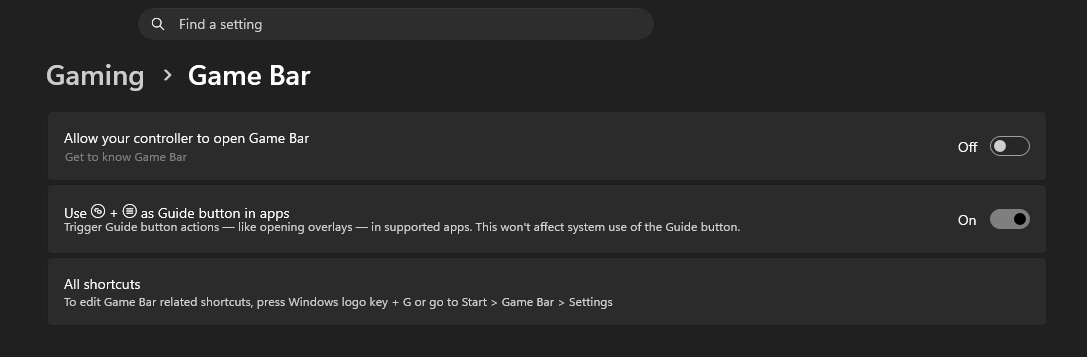
Note: If you press Legion L + RS now, you’ll see the Game Bar still pops up anyway—proving that Lenovo is indeed executing the binary directly instead of letting Windows handle the controller event!
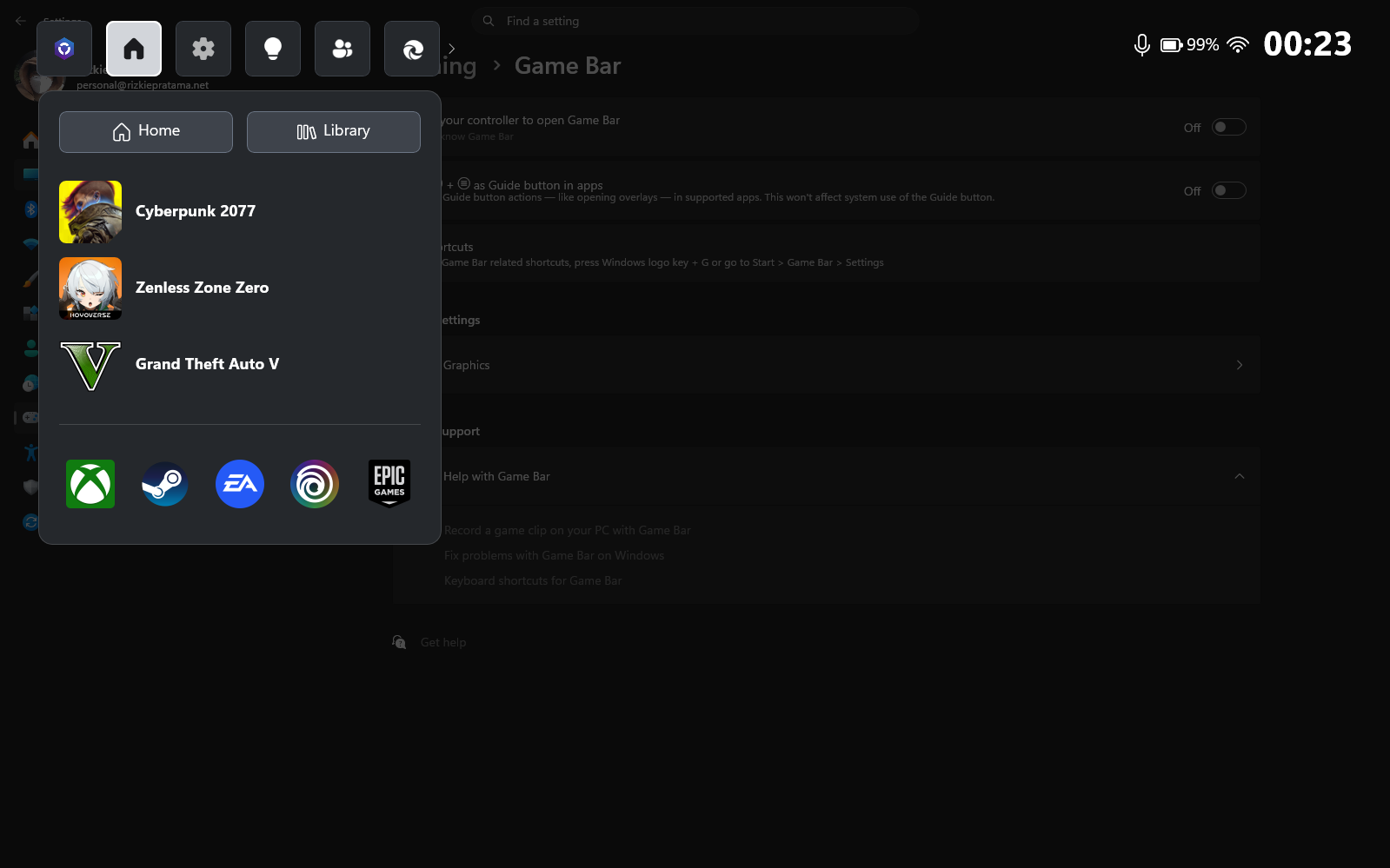
Step 2: Configure Steam Controller Settings
Now that Windows translates View + Menu into the Xbox Guide button, we need to make sure Steam listens to it.
- Open Steam (preferably in desktop mode first to make these settings easier to navigate).
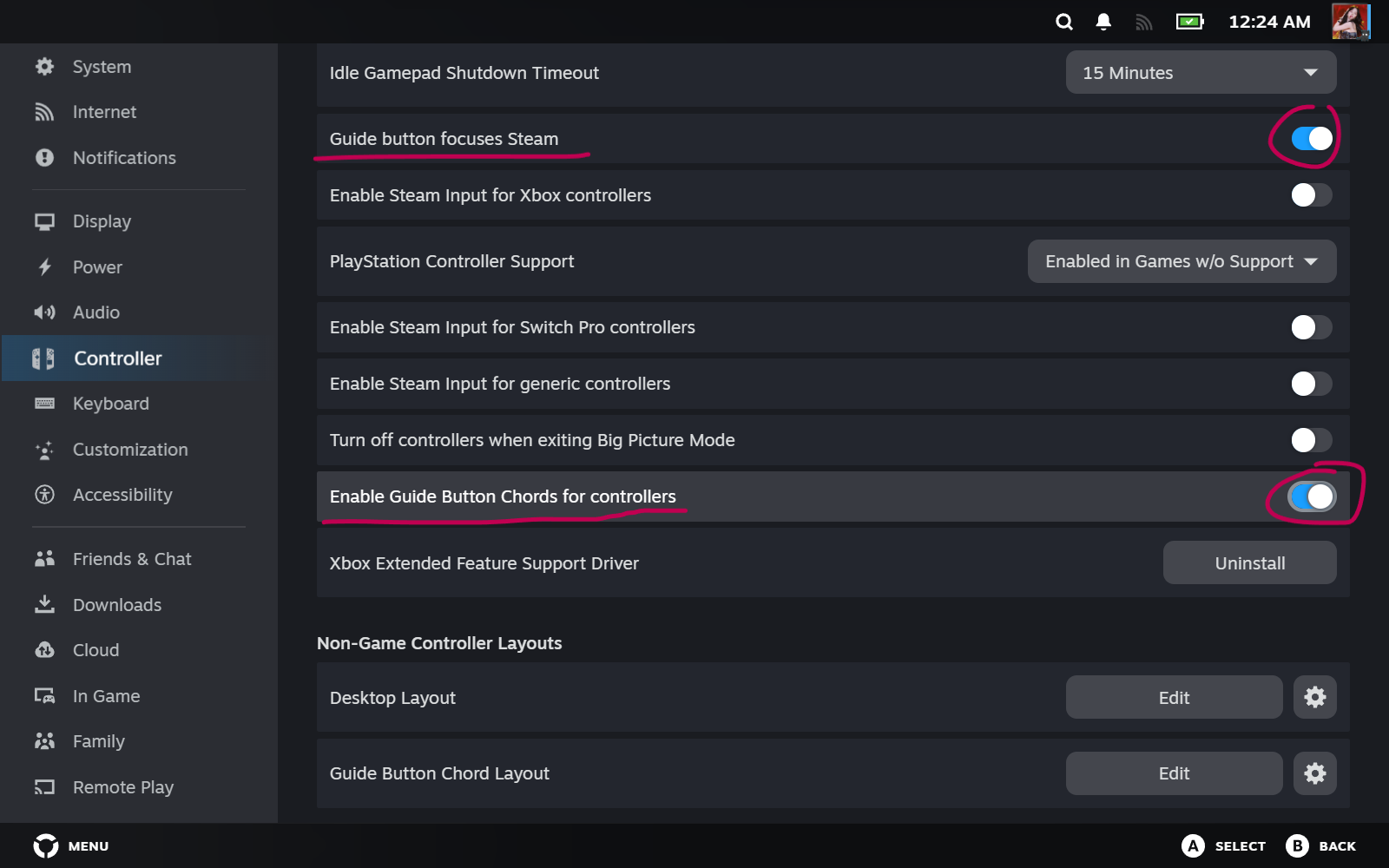
- Go to Steam > Settings > Controller.
- Under the general controller settings, toggle ON both “Guide button focuses Steam” and “Enable Guide Button Chords”.
Step 3: Unbind the Steam “Guide Chord” Alt+Tab Conflict
At this point, if you try to press View + Menu while in a game or in Steam Big Picture, you will notice it behaves very inconsistently. Often, it will trigger an Alt+Tab action, flashing the Windows app switcher and kicking you out of your game.
Why does this happen?
Steam features a “Guide Button Chord Layout” which allows you to hold down the Guide button and press other buttons to trigger system shortcuts. Since our simulated Guide button is the physical combination of View + Menu, Steam registers both:
- The virtual “Guide button” being held down.
- The physical “Menu” or “View” button being pressed at the same time.
In Steam’s default settings, the chord for Guide + Menu (Start) is bound to Alt+Tab. So when you press the combo, Steam instantly Alt-Tabs you out of your game! To fix this, we must unbind these chord shortcuts.
- In the Steam Settings > Controller menu, find Guide Button Chord Layout and click Edit.
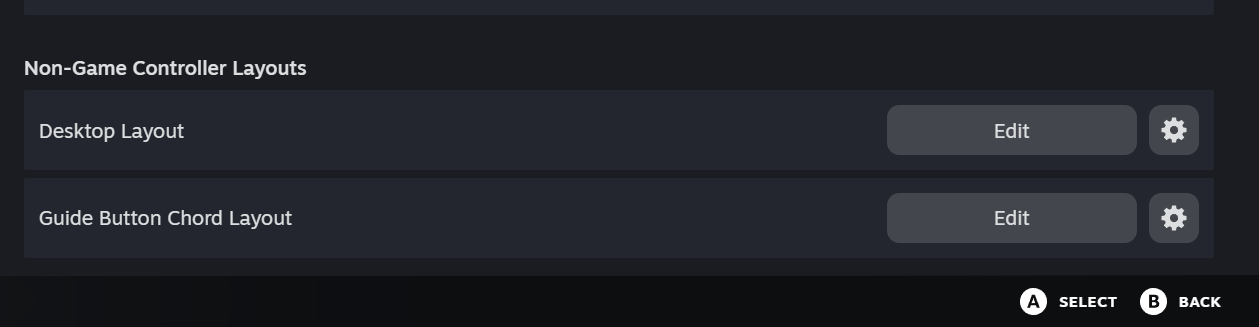
- In the layout editor, click Edit Layout.
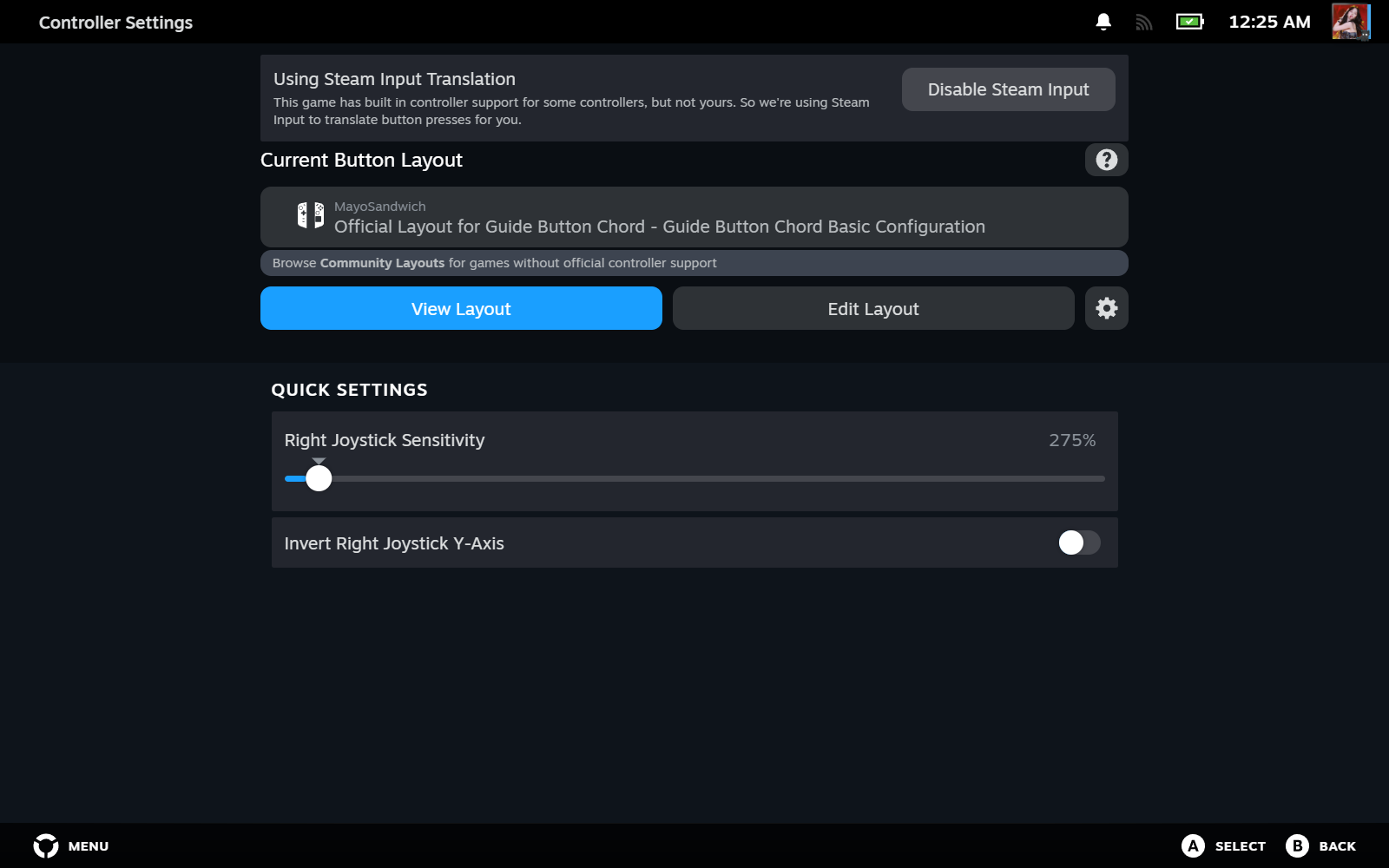
- Navigate to the View and Menu buttons (Select / Start) in the layout, click on their gears, and choose Remove Command or unbind them completely. (Make sure no keyboard shortcuts like Alt+Tab or Escape are attached to these buttons in this chord menu).
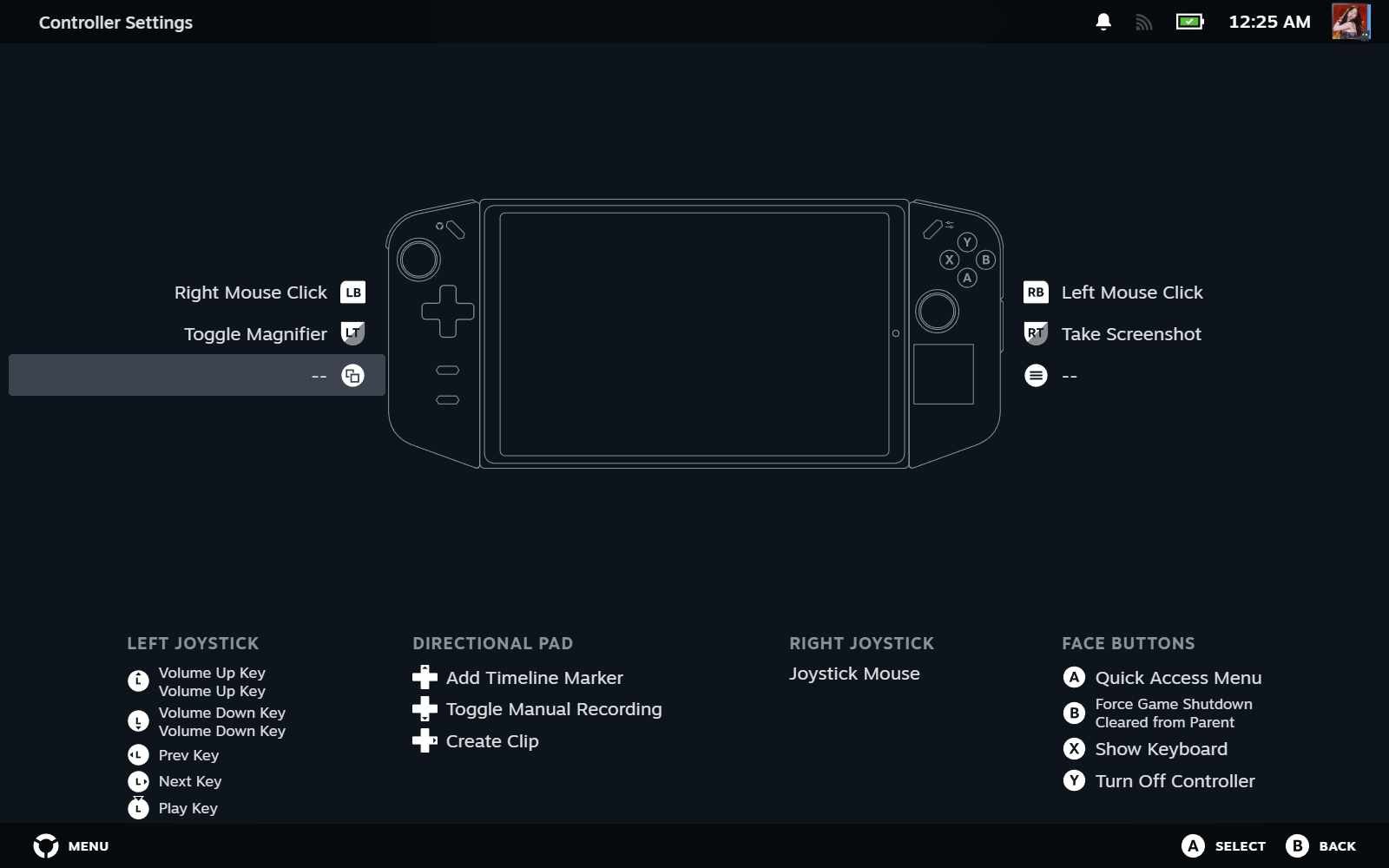
- Save the layout and close the settings.
The Result: A Consistent Guide Button!
With the Steam chords unbound, pressing View + Menu on your Legion Go will now send a clean, unconflicted Xbox Guide button command to Steam.
Whether you’re mid-game and need to bring up the Steam overlay, or you’re navigating Steam Big Picture and want to return home, this shortcut will now work flawlessly every time without any Alt+Tabbing issues or Legion Space / Game Bar interruptions.
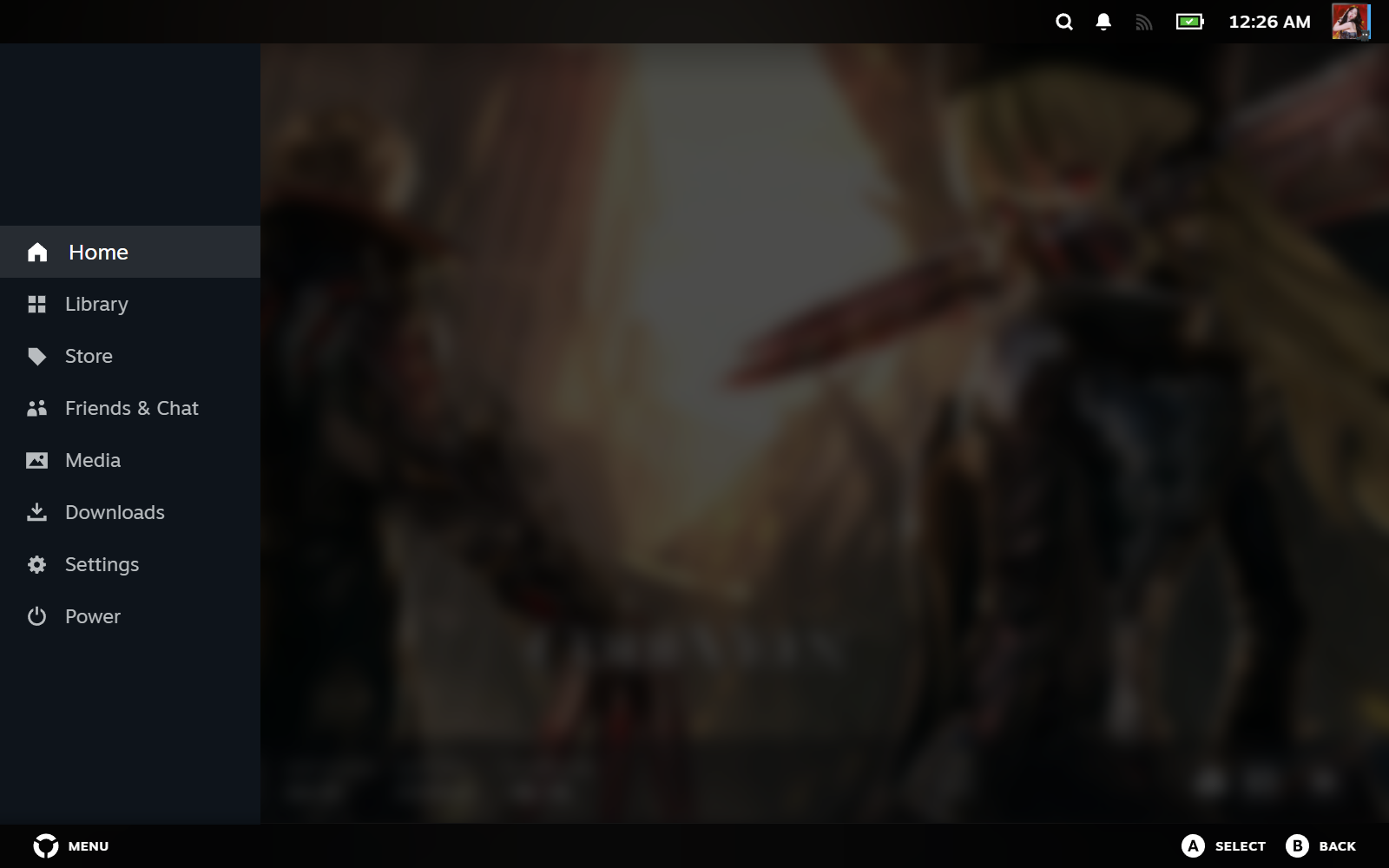
It’s a bit of a workaround for a problem that Lenovo should have solved natively, but until they give us a proper way to disable Legion Space or map the hardware buttons, this View + Menu combo is the most reliable way to make your Legion Go feel like a true gaming console.
Happy gaming! 🎮
Discussion